San Diego: A Complete Minimal Example
A soup-to-nuts example showing the complete pipeline from downloading data to rendering a beautiful 3D terrain visualization in under 200 lines of code.
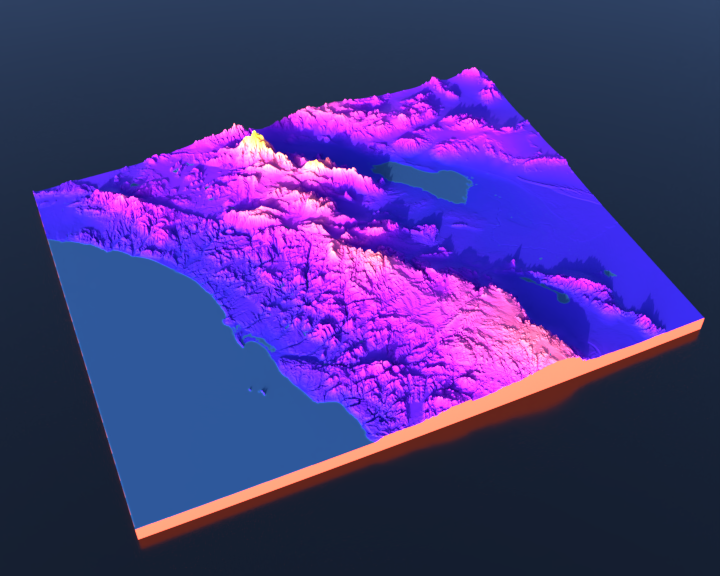
Overview
This is the perfect starting point for terrain-maker. It demonstrates the complete workflow:
Download - Automatically fetch SRTM elevation data from NASA
Load - Read DEM files with one function call
Transform - Reproject, flip, scale, and downsample the terrain
Render - Create a beautiful 3D visualization with lighting and materials
The entire script is ~180 lines including comments and argument parsing.
Quick Start
# First time (downloads data from NASA)
python examples/san_diego_demo.py

# Subsequent runs (skip download)
python examples/san_diego_demo.py --skip-download
Requirements:
Blender Python API (
uv pip install bpy)NASA Earthdata credentials in
.envfile (see SRTM Data Guide)
The Complete Pipeline
Step 1: Download DEM Data
from terrain_maker.terrain.dem_downloader import download_dem_by_bbox

bbox = (32.5, -117.6, 33.5, -116.0)  # San Diego County
download_dem_by_bbox(
    bbox=bbox,
    output_dir="data/san_diego_dem",
    username=os.environ.get("EARTHDATA_USERNAME"),
    password=os.environ.get("EARTHDATA_PASSWORD"),
)
The library automatically:
Determines which SRTM tiles cover the bounding box
Downloads NASADEM tiles from NASA’s Earthdata servers
Saves ZIP files for later use
Step 2: Load DEM Files
from terrain_maker.terrain.data_loading import load_dem_files

dem, transform = load_dem_files("data/san_diego_dem")
The library handles:
Extracting HGT files from ZIPs
Loading multiple tiles
Merging into a single array
Preserving geographic transform
Step 3: Create and Transform Terrain
from terrain_maker.terrain.core import Terrain

terrain = Terrain(dem, transform, dem_crs="EPSG:4326")

# Add transforms: reproject, flip, scale, downsample
terrain.add_transform(reproject_raster("EPSG:4326", "EPSG:32611", num_threads=4))
terrain.add_transform(flip_raster(axis="horizontal"))
terrain.add_transform(scale_elevation(scale_factor=0.0001))
terrain.configure_for_target_vertices(10_000_000, method="average")
terrain.apply_transforms()
What this does:
Reprojects from WGS84 (EPSG:4326) to UTM Zone 11N (EPSG:32611)
Flips terrain horizontally for correct orientation
Scales elevation from meters to Blender units (0.0001)
Downsamples to 10M vertices for manageable rendering
Step 4: Setup Colors and Water
from terrain_maker.terrain.core import elevation_colormap

terrain.set_color_mapping(
    lambda elev: elevation_colormap(elev, cmap_name="plasma"),
    source_layers=["dem"],
)

water_mask = terrain.detect_water_highres(
    slope_threshold=0.0000000000000001,
    fill_holes=False,
    scale_factor=0.0001,
)
Uses the perceptually uniform plasma colormap (viridis family) and detects water bodies like San Diego Bay.
Step 5: Create Mesh
terrain.compute_colors()
mesh = terrain.create_mesh(
    scale_factor=100,
    height_scale=8.0,
    center_model=True,
    boundary_extension=True,
    water_mask=water_mask,
    base_depth=1.0
)
Creates a high-quality 3D mesh with:
Smooth fractional edges (boundary_extension)
Centered positioning
Water base for San Diego Bay
Vertex colors baked in
Step 6: Setup Scene and Render
from terrain_maker.terrain.scene_setup import position_camera_relative, setup_hdri_lighting, create_background_plane
from terrain_maker.terrain.materials import apply_colormap_material

# Camera positioned south-southwest looking northeast
camera = position_camera_relative(
    mesh,
    direction="south-southwest",
    camera_type="PERSP",
    focal_length=50,
    distance=1.0,
    elevation=1.0,
)

# Realistic sky lighting
setup_hdri_lighting(
    sun_elevation=15.0,      # Mid-afternoon
    sun_rotation=225.0,      # From southwest
    sun_intensity=0.05,
    air_density=0.05,
    visible_to_camera=False,
    sky_strength=1.75
)

# Background plane for shadows
create_background_plane(
    camera=camera,
    mesh_or_meshes=mesh,
    distance_below=0.0,
    color="#000000",
    roughness=0.20,
    size_multiplier=10,
    receive_shadows=True,
)

# Apply eggshell material
apply_colormap_material(mesh.data.materials[0], terrain_material="eggshell")

# Render
render_scene_to_file("san_diego_demo.jpg", width=720, height=576)
Key Features Demonstrated
NASA Data Integration
Shows how to use terrain-maker’s built-in NASA Earthdata downloader to fetch SRTM elevation data programmatically.
Transform Pipeline
Demonstrates the power of terrain-maker’s transform system:
Geographic reprojection
Data manipulation (flip, scale)
Automatic downsampling
High-Quality Rendering
Uses modern Blender features:
HDRI sky lighting for realistic illumination
Eggshell material for subtle surface sheen
Background plane for drop shadows
Perceptually uniform colormap
Command-Line Options
# Download and render (default)
python examples/san_diego_demo.py

# Skip download if you have data
python examples/san_diego_demo.py --skip-download

# Setup scene without rendering (for inspection in Blender)
python examples/san_diego_demo.py --no-render

# Custom output directory
python examples/san_diego_demo.py --output-dir renders/

# Custom DEM directory
python examples/san_diego_demo.py --dem-dir data/my_san_diego_tiles/
Key Functions Used
Function |
Purpose |
|---|---|
|
Download SRTM tiles from NASA |
|
Load and merge DEM files |
|
Main terrain processing class |
|
Convert between coordinate systems |
|
Map elevation to colors |
|
Smart camera positioning |
|
Realistic sky lighting |
|
Apply terrain materials |
What Makes This Minimal?
This example is intentionally minimal to show the essentials:
No score layers - Just elevation coloring
No road overlays - Focus on terrain
Single camera view - Not generating multiple angles
Straightforward transforms - Common reprojection workflow
~180 lines total - Including imports, args, and comments
For more advanced features, see:
Great Lakes Elevation Visualization - Multiple camera views, advanced water detection
Snow Integration: Sledding Location Analysis - Score-based coloring with SNODAS data
Combined Render: Full-Featured Example - Roads, parks, multiple data layers
See Also
SRTM Data Download Guide - Setting up NASA credentials
Great Lakes Elevation Visualization - Great Lakes multi-view example
download_dem_by_bbox()- DEM download APITerrain()- Core terrain class